 Audiogravity
7. Administration
Everything you need to run the box lives in the interface — no SSH required. Most of this section is available on Starter: Profiles, Services, Audio Software, System, Admin — and Config, the configuration editor and its guided setup. Only the Audio Pipeline map and Performance tuning are Pro. Every tab has an INFO badge that opens an in-app explanation.
The Admin tab
The Admin tab gathers everything about accounts and the box's relationship with Audiogravity: the user cards (below), unread announcements, the update banner — and the licence panel, which also opens when a Starter install taps a locked Pro tab.
Users & access
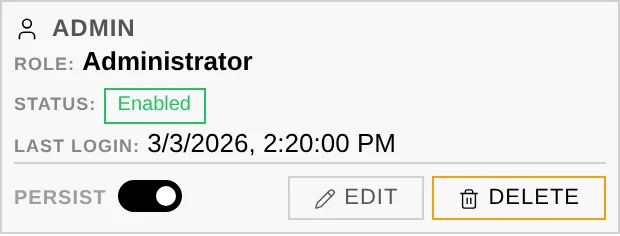
User management lives on the Admin tab — one card per account, with an online indicator for users currently connected. Three roles control who can do what:
- Admin — full access to all features and user management. Cannot be deleted or demoted by others, and cannot delete their own account.
- User — standard access to features, but cannot manage users or core settings.
- Guest — read-only: can view status and logs but not change settings or toggle services.
Passkeys — the Passkeys button on your own card registers WebAuthn credentials (Face ID, Touch ID, a hardware key). Each passkey is tied to one device and can be removed individually; use it instead of a password at login. Password changes take effect immediately on current sessions.
Session persistence — the Persist toggle chooses how your session is stored: persistent (stay logged in across browser restarts) or session-only (log out when the tab closes). Takes effect on your next login.
The Settings panel
The gear in the top bar opens the app-wide Settings panel:
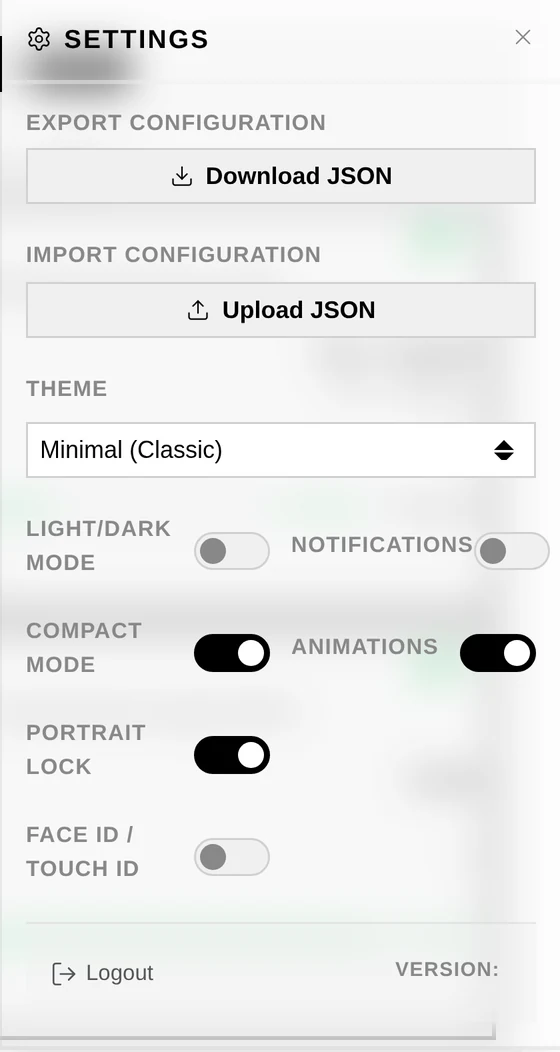
- Export / Import Configuration — download or replace
audio-config.json, the services-and-profiles registry (see Audio configuration below). - Theme — three looks: Minimal (Classic), Slate (Modern) and Gravity (Bold & Cosmic) — plus a Light/Dark Mode toggle.
- Notifications — subscribe this device to push notifications (see below).
- Compact Mode — a denser layout. Animations — turns UI motion off (functional loading spinners keep animating so an operation never looks stuck).
- Portrait Lock — phones and tablets only; see 4. Listening.
- Face ID / Touch ID — register this device as a passkey in one tap; each registered device appears as a chip you can remove individually. (These are the same credentials as the Passkeys button on your user card above.)
Push notifications
With Notifications on, the box sends this device a system notification when something needs attention — even with the app closed:
- a monitored service goes down;
- the CPU reaches a critical temperature;
- a software package update is available;
- a profile is activated.
Like passkeys, push needs Audiogravity reachable over a real HTTPS domain — it does not work over a bare IP (see 2. Installation).
Services
Monitor and control individual systemd services in real time.
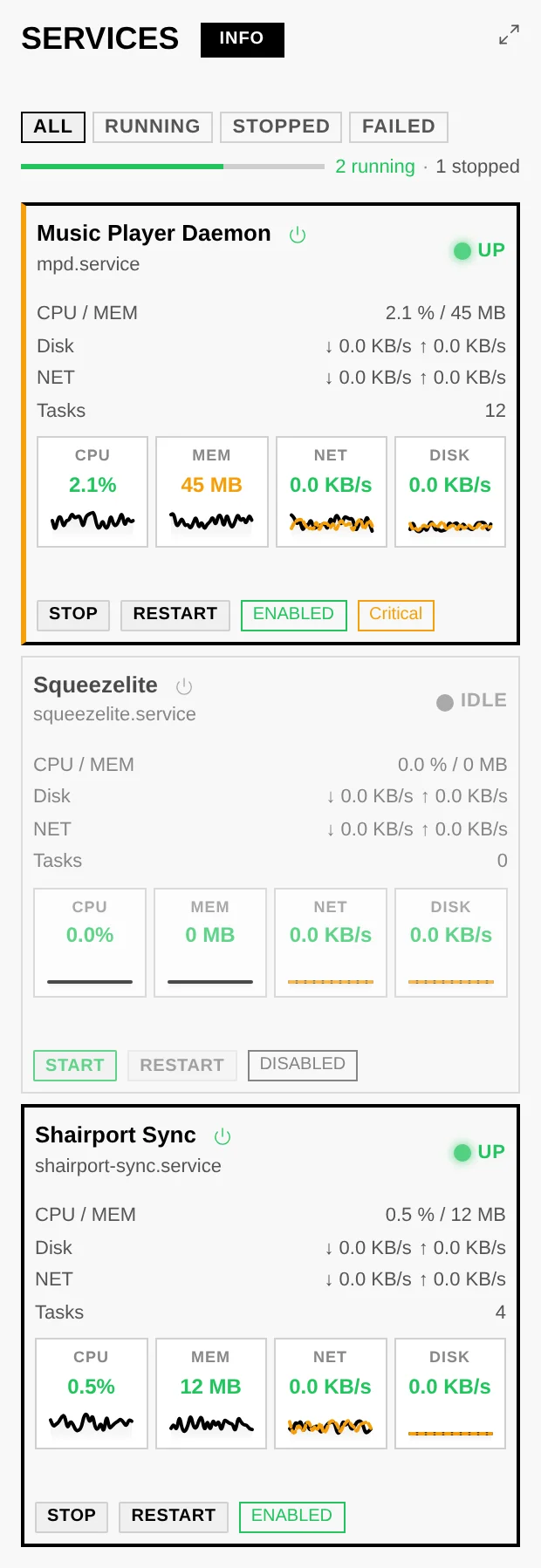
- Status — active (green), inactive (grey) or failed (red); the dot blinks orange while a start/stop is pending. A segmented health bar shows the running / stopped / failed proportions at a glance.
- Control — start, stop or restart any service from its tile. The ENABLED / DISABLED badge controls whether it starts at boot. Uptime is shown next to the unit name.
- Detail — click a service name for live metrics (CPU, memory, tasks, network, disk) and the session action history. Metrics are colour-coded LOW / MEDIUM / HIGH, tuned per audio service (e.g. CPU: ≤5 % low, 5–20 % medium, >20 % high).
- Filter — ALL / RUNNING / STOPPED / FAILED.
Config editor
Safely edit the real configuration files of your audio services (see also 3. First run for the guided setup).
- Guided mode (MPD / AirPlay / UPnP) — change output or library in a couple of clicks; only the changed setting is rewritten. Reset to default regenerates a minimal config (current file backed up first).
- Form mode — edit common settings through a friendly interface with field descriptions and validation.
- Expert (Raw) mode — edit the raw file directly, with syntax validation before save.
- Preview changes (Diff) — a unified diff (raw) or a before/after field table (form) of your unsaved edits.
- Automatic backups — every save creates a timestamped backup; the Backups button browses and restores any previous version.
- Restart after save — on by default (applies changes immediately); uncheck to batch several edits.
Audio configuration (services & profiles)
audio-config.json is the registry of the audio services Audiogravity manages and
the profiles built on top of them. It's what populates the Services tab (each declared
service becomes a controllable tile) and the Profiles tab (each profile a one-tap way to
start one set of services and stop another). It is a different file from the per-service config
files edited above — this one lists which services exist, not their internal settings.
-
Services — each entry declares a
label, itssystemd_unit(e.g.mpd.service) and acriticalflag. MPD, upmpdcli (UPnP), shairport-sync (AirPlay), Roon Bridge and HQPlayer's NAA are the usual entries. Where a service keeps its own settings file is not declared here — Audiogravity finds it by itself, on any machine. Files written before this version carry anappconfigfileline; it is ignored (see 9. Troubleshooting). -
Profiles — each entry has a
name, adescription, and two lists: the services to start and the services to stop when you activate it (plus an optionalcriticalflag anddepends_on). "MPD", "Stop All"… are profiles. -
topology_link— ties this box to its device in the topology (host_device_id, e.g.streamer_01), so the signal-chain view knows which streamer the services run on. -
Managing it. Open Settings (the gear in the top bar). Export Configuration downloads the current
audio-config.json; Import Configuration uploads a replacement. -
Validation on import. An imported file is checked before it is applied: bad structure, a missing required field, a wrong type — but also a
systemd_unitthat isn't installed on the box — are reported as blocking errors; softer issues appear as warnings you can review and accept. A referenceaudio-config.json.exampleships with the box.
See also Audio topology below — the other file you own, describing the physical hi-fi chain that feeds the signal-path view.
Audio topology (signal-chain map)
The Audio Pipeline graph (see 6. Outputs & engines) is drawn
from a single file you own: audio-topology.json. It is a plain description of your
hi-fi chain — which devices you have (streamer, DAC, amplifier, speakers, the app driving
it…) and how they are wired together. Audiogravity reads it to draw the picture;
it never rewrites it, so the map always reflects exactly what you declared.
- What it declares vs. what is detected. The topology describes the chain — the boxes downstream of your streamer and how they connect. The streamer's own physical outputs (USB, optical, HDMI…) are resolved live from the real hardware at playback time, not from the file; the file just tells Audiogravity which cable feeds which device so the graph and the output labels line up.
- Editing it. Open the Audio Pipeline view and click CONFIG (Pro, admin/user — guests get a read-only view). The editor opens in View mode; hit Edit to unlock the JSON, then Save.
- Download / Upload. From the same editor, Download saves the current
audio-topology.jsonto your computer — handy for editing it offline or keeping a copy; Upload loads a file back into the editor for review, and the usual save-time validation runs when you click Save (nothing is written until you do). - Validation on save. Before the file is written, Audiogravity checks it: a malformed file or an unknown device type is an error and blocks the save; a broken link (an output pointing at a device that doesn't exist) or a connector that maps to no real output is a warning you can review and accept. Once saved, the graph reloads immediately.
Structure
Everything lives under hifi_topology.devices — a map keyed by a device id you choose:
{
  "hifi_topology": {
    "devices": {
      "streamer_01": {
        "type": "streamer",
        "label": "Audiogravity",
        "outputs": {
          "usb_out": { "connector": "usb-a", "target_device_id": "dac_01" }
        }
      },
      "dac_01": {
        "type": "converter",
        "label": "My DAC",
        "inputs":  { "usb_in": { "connector": "usb-b" } },
        "outputs": { "line_out": { "connector": "rca", "target_device_id": "amp_01" } }
      }
    }
  }
}
type— one ofstreamer,converter(DAC),amplifier,output(speakers),source,server,storage,controller.outputs/network_outputs— each wired output points at atarget_device_id(and optionally atarget_input_idon that device); that's what links the chain together.connector— on the streamer, the output connector (usb-a,toslink,hdmi,rca/jack…) is what maps the declared output onto a detected hardware output. A connector that matches no real output is what the save-time check warns about.
A fully-commented reference file, audio-topology.json.example, ships with the box and
validates cleanly — start from it when in doubt (Download the current file, edit against the
example, then Upload it back).
Keeping it up to date
Edit the map whenever your physical setup changes — a new DAC, a different amplifier, a cable
moved from optical to USB. Keep the target_device_id values consistent (an output should
point at a device id that exists), and the save-time validation will flag typos before they
reach the graph. Every save is backed up automatically, so you can always roll back.
Audio Software
Install, update and uninstall the services Audiogravity uses (MPD, upmpdcli, shairport-sync, Roon Bridge…).
- States — NOT INSTALLED, INSTALLED, INSTALLING/UPDATING (progress bar), ERROR.
- Actions — INSTALL, UPDATE (to the latest version), UNINSTALL.
- Version check — per-card or CHECK UPDATES in the header to refresh all. When updates are pending, an UPDATE ALL badge appears next to it to run them in one go.
- Restart required — a pulsing badge appears when a service needs a restart after install/update; click to restart it.
- Architecture — the CPU badge shows supported architectures (amd64, arm64…); unsupported cards are dimmed. A DRY-RUN mode simulates operations safely.
System
Real-time monitoring and box-level actions.
- Metrics — CPU, temperature, memory, disk and network, updated every few seconds over SSE (the LIVE badge shows the stream is active).
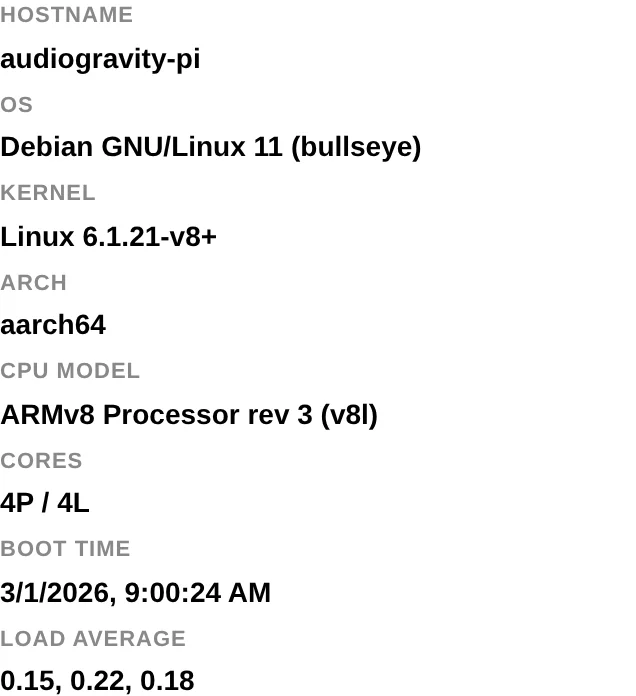
- System & audio hardware — hostname, OS, kernel, CPU model/cores; every audio card, USB interface and subdevice.
- Event log — system events and live updates; RUNNING/STOPPED to pause, CLEAR to reset.
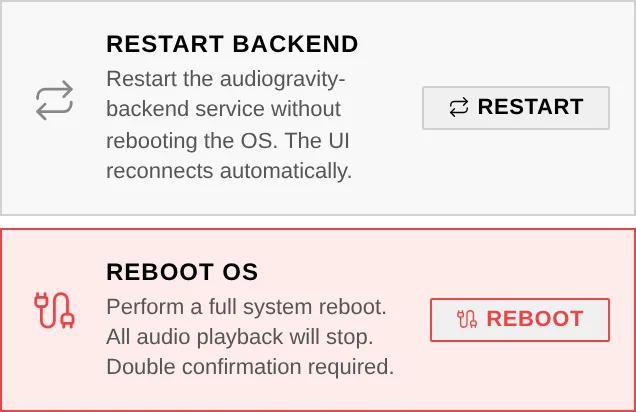
- Actions (admin) — Restart Backend restarts the Audiogravity service without rebooting; Reboot OS performs a full reboot (double confirmation). The UI reconnects automatically.
- Terminal (admin) — a full interactive bash shell in the browser (runs as the backend user — use with care).
Performance tuning (Pro)
Tune CPU scheduling for bit-perfect, glitch-free playback.
- CPU governor — performance (max frequency always, lowest latency), schedutil (adapts to load), powersave (not recommended for audio). Apply All sets it on every core; Save Conf persists it; Create Service restores it at boot.
- THROTTLED badge — appears on a core when the kernel reports thermal throttling; sustained throttling during playback causes glitches.
- Latency test — runs
cyclictestto measure real-time scheduling latency (µs); lower max = fewer dropouts. History of the last 10 runs. - Network test — ping jitter/loss or iperf3 throughput; useful for Roon, AirPlay or NAS playback.
- RT process monitor — shows the scheduling policy of audio processes: SCHED_FIFO / SCHED_RR = real-time (green); NON-RT = risk of glitches under load (red).
Systemd tuning (Pro)
Low-level, per-service OS tuning using systemd drop-in overrides — the native
.service files are never modified; everything lives in an isolated
.d/override.conf.
- CPU affinity — pin a service to specific cores to cut context-switching jitter.
- RT scheduling — FIFO/RR policy and priority (1–99) for guaranteed CPU time.
- CPU weight / I/O priority / OOM score — bias the scheduler, disk/network I/O and the out-of-memory killer in favour of audio.
- RT preset — Audio Optimized pre-fills a battle-tested config (SCHED_FIFO 80, LimitRTPRIO 99, MEMLOCK infinity, I/O realtime, OOMScoreAdjust −500, CPUWeight 1000).
- Safety — a diff preview before applying, automatic backups (Restore Backup), and Remove Override to roll a service back to factory behaviour instantly.
Announcements
From time to time Audiogravity broadcasts a short announcement — early-access news, an important notice. Unread announcements appear as dismissible banners at the top of the Admin page, and the Admin tab carries a small marker until you have seen them (the same cue it uses for a waiting update). Dismissals are remembered per device.
Licence
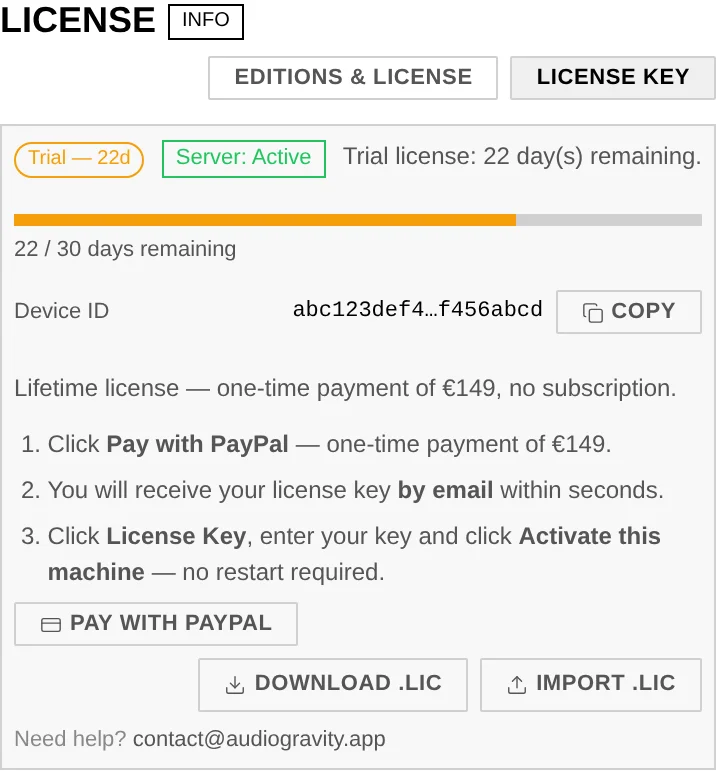
The licence panel opens from the Admin tab (and automatically when a Starter install taps a Pro tab — those carry a small lock icon in the tab bar).
- Trial — 30 days of full access, auto-activated on first run.
- Lifetime — a single-device
.licfile cryptographically tied to this device's hardware fingerprint (the Device ID). One-time payment, no expiry, no subscription. - Import / re-download — import a
.licfile, or re-download yours from the self-service portal (purchase email + Device ID, no account needed) after an OS reinstall.
Related
- 8. Updating — keeping the box current
- 9. Troubleshooting — when something misbehaves