 Audiogravity
5. Library & streaming
Browse everything from one interface: your local files, your UPnP/DLNA media servers, and the streaming services — Qobuz, Tidal and HIGHRESAUDIO — side by side. Search results are directly playable, with titles and cover art. Pick a track, pick an output, and the music flows at full resolution.
How the Library tab is organised
The Library tab holds several views:
- Browse — albums for the active source, with infinite scroll.
- Search — full-text across artists, albums and tracks. Tapping an artist opens that artist's albums — across your local library, Qobuz, Tidal and HIGHRESAUDIO — with a back control to return to your results.
- Sources — pick the active source (local, streaming, Roon zone, UPnP server). Connecting or disconnecting a service updates this list straight away. Outputs never appear here: a network speaker and HQPlayer are destinations, not places to browse — they live in Outputs.
- Outputs — pick where the audio goes (see 6. Outputs & engines).
- Queue — what's playing and coming up.
Your local library
Files on your NAS or USB drive (served by MPD) appear as a browsable, searchable source — album view with infinite scroll, full-text search, queue management. You can also cast local files to a network renderer, just like a streaming service (see 6. Outputs & engines).
UPnP / DLNA media servers
In Sources, Audiogravity lists the UPnP media servers it already knows and lets you run a manual scan to discover more (e.g. MinimServer); found servers are saved automatically, and a left-swipe removes a saved server you no longer use. Browse any server's tree (ContentDirectory); results play directly, with metadata and art.
Roon
Connect a Roon source in Sources; it expands to show the available zones. A dedicated Roon browser navigates the Roon library hierarchy.
Streaming services
All three deliver native-resolution audio through their official APIs. Each requires your own active subscription — Audiogravity provides no access itself.
Connect them from Library → Sources: open the service's card, sign in, and the session is kept alive and refreshed for you. Each card shows its connection state and a disconnect action.
Qobuz
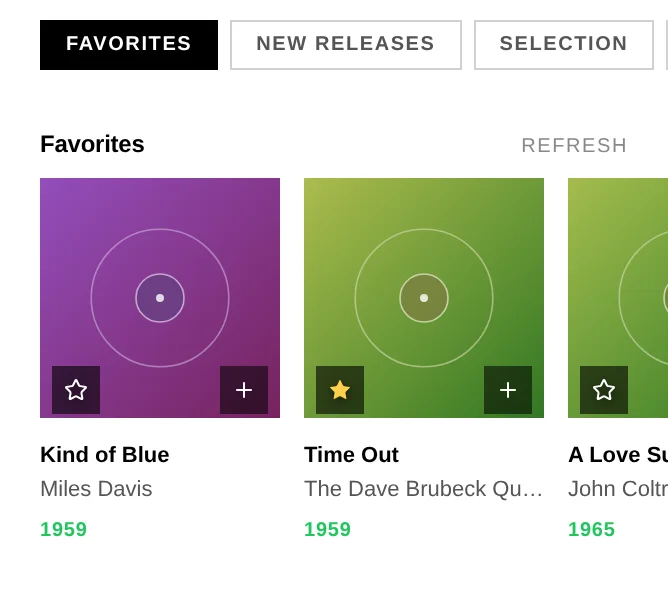
Tap Connect — an OAuth2 login opens; sign in and Qobuz redirects back automatically, and the card switches to Connected. Browse via category pills — Favorites, New Releases, Selection, Playlists — plus full search. Hi-Res up to 24-bit / 192 kHz.
Tidal
Tidal uses the PKCE flow: tap Connect, sign in, and Tidal lands on a fixed
redirect page (tidal.com/android/login/auth?code=…) that a web app can't intercept —
so copy that full URL from the address bar, paste it back into the Tidal card and
tap Finish login. You only do this once. Lossless FLAC (HiFi / HiFi Plus);
Favorites, New Releases, Charts, editorial playlists, in-track seek.
HIGHRESAUDIO
Simpler still — enter your account email and password directly in the card (its official API, no redirect, no copy-paste). Native-master FLAC up to 24-bit / 352.8 kHz; Favorites, Discover, Editor's Picks, Bestsellers, search. Your password is stored encrypted on the device.
One device per HRA account. HIGHRESAUDIO allows a single active device — connecting Audiogravity signs you out of your other HRA players.
Favorites — star an album from the app
On Qobuz, Tidal and HIGHRESAUDIO albums, a star — on the album card in the browse grid and on search results — adds the album to (or removes it from) your favorites on that service, with one tap. The star is filled when the album is already a favorite, updates instantly, and stays in sync between browsing and search.
Subscriptions at a glance
| Service | For Hi-Res you need |
|---|---|
| Qobuz | Qobuz Studio or Sublime |
| Tidal | Tidal HiFi or HiFi Plus |
| HIGHRESAUDIO | an active HIGHRESAUDIO subscription |
Internet radio
Internet radio is a first-class source — stations flow through the same transport as your FLAC library, route to the same output, and show the same hi-fi readout. The radio view has three sub-tabs:
- My Live Radio — your own collection (custom stations + saved hits). The default tab; it hosts the Add custom station form. A brand-new box arrives with a few starter stations (FIP, Classic Vinyl HD…) already here — keep them or remove them. An upgrade never touches your collection.
- Favorites — your starred stations.
- Search — a query box with country, genre and Hi-Res filters, backed by the Radio Browser catalogue.
On each station card: tap to play, the star toggles Favorites, the + toggles My Live Radio, the pencil edits a custom station, and a left-swipe removes it from the current list.
Where the stations come from, and what is sent back
Search results come from Radio Browser, a free, community-run catalogue. It is not a service Audiogravity operates: it runs on a single machine, and when it is unavailable — which does happen — search stops working for as long as its own outage lasts. Your own stations are unaffected: My Live Radio and Favorites are stored on your box and keep playing regardless. A search you have already run also keeps showing its last results while the catalogue is unreachable, for up to a day.
That catalogue ranks stations by how often they are played, and Audiogravity sorts your search results by that ranking. Its documentation asks the software that uses it to report each play, so it does: when you start a station, its identifier is sent to Radio Browser, and nothing else — no account, no listening history, no information about you or your box. Stations you added by hand are never reported, and neither is a station that failed to start.
If you would rather nothing left your box at all, set RADIO_REPORT_PLAYS=false in
/opt/audiogravity/core/.env and restart the core
(sudo systemctl restart ag-core-server). Search and playback are unchanged by this;
only the report stops.